📶
eSIM Data Top-Ups, Explained
Refills, validity clocks and burn rates.
Read nextHome›Blog›Advanced eSIM guides
Advanced eSIM guidesMost eSIM problems are settings problems, not broken hardware — and they follow patterns. This guide walks through the failure modes in the order you're most likely to hit them: installation, activation, data, roaming and dual-SIM conflicts. Work the steps in order, and nine times out of ten you'll be connected before you finish reading.
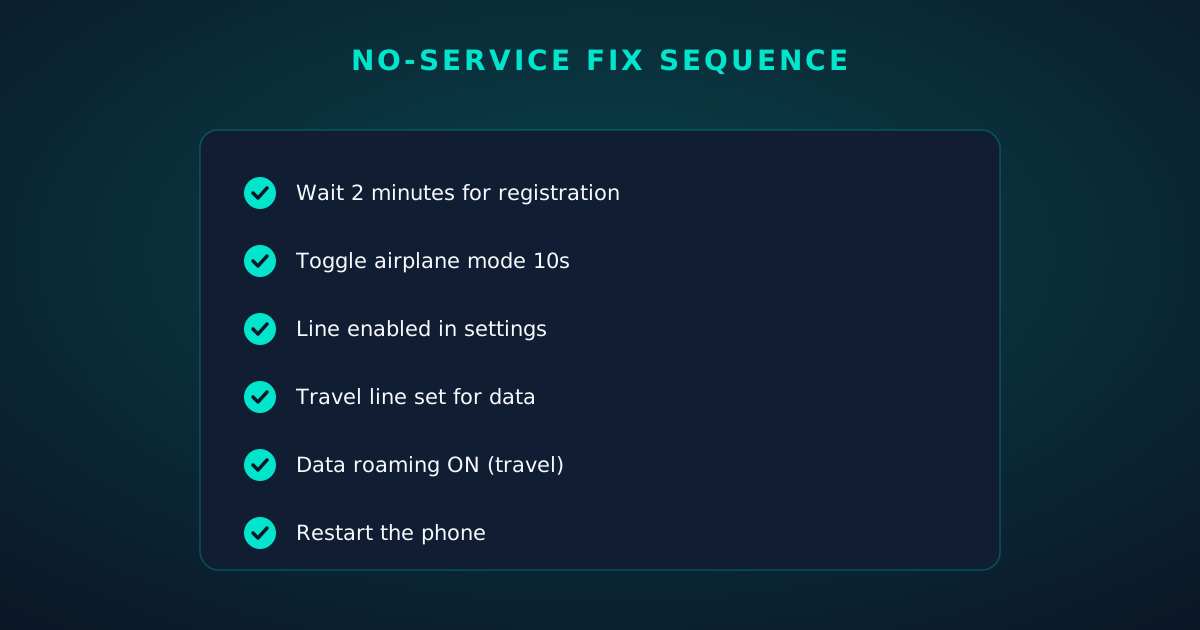
You installed the profile, the line appears in settings — and the signal bars say "No Service." Don't panic; this is the most common eSIM complaint and usually the easiest to fix. Work this sequence:
If you have signal bars but no data after all that, you're probably looking at an APN problem — jump to chapter 5.
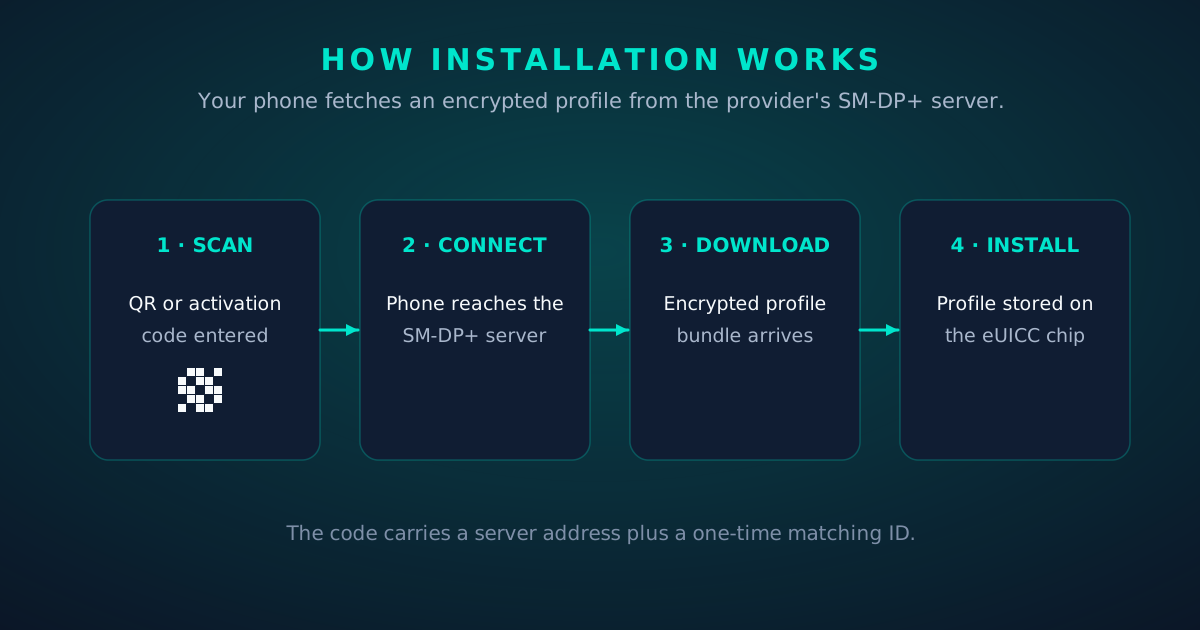
Installation failures almost always happen before any profile touches your phone, which means nothing is broken — you just need a working activation path:
Understand the flow and the errors get less mysterious: the QR is just a convenient wrapper around a server address and a one-time code. Your phone contacts the provider's SM-DP+ server, authenticates with your chip's certificate, and downloads an encrypted profile. Any break in that chain — bad code, no internet, locked phone — stops the install, safely, before anything half-written lands on the chip.
After a successful download, the phone still has to activate the profile — register it on the network. Errors here sound scary but map to a short list of causes:
First, set expectations correctly: most travel eSIMs are data-only. They include no phone number, no voice minutes, no SMS. If your plan is data-only, "calls don't work" isn't a fault — it's the product. Use WhatsApp, FaceTime Audio or any VoIP app over the data connection instead.
If your plan does include voice and calls still fail:
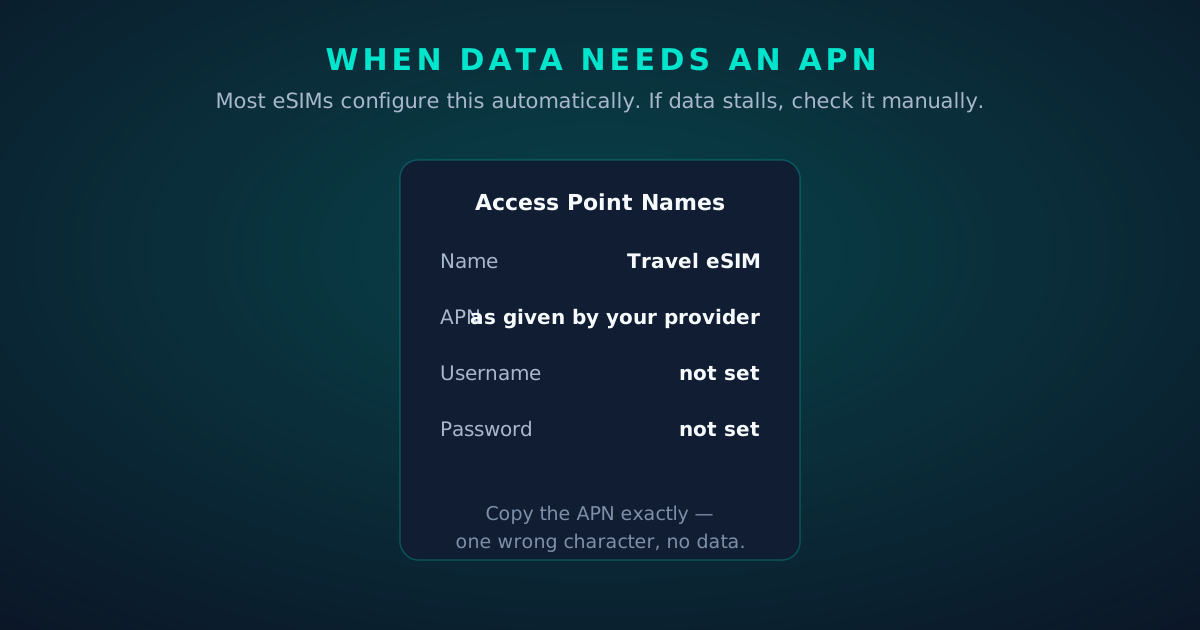
The APN (Access Point Name) tells your phone which gateway to use for data on a given network. eSIM profiles usually configure it automatically — but "usually" leaves room for the most confusing failure mode in mobile data: full signal bars, zero bytes moving.
Symptoms of an APN problem: signal looks fine, calls may even work, but nothing loads. Airplane-mode toggles and restarts change nothing.
After saving, toggle airplane mode once to force the phone to re-establish the data session through the new APN.
Your travel eSIM is fundamentally a roaming product: it connects as a guest on partner networks. When roaming itself misbehaves:
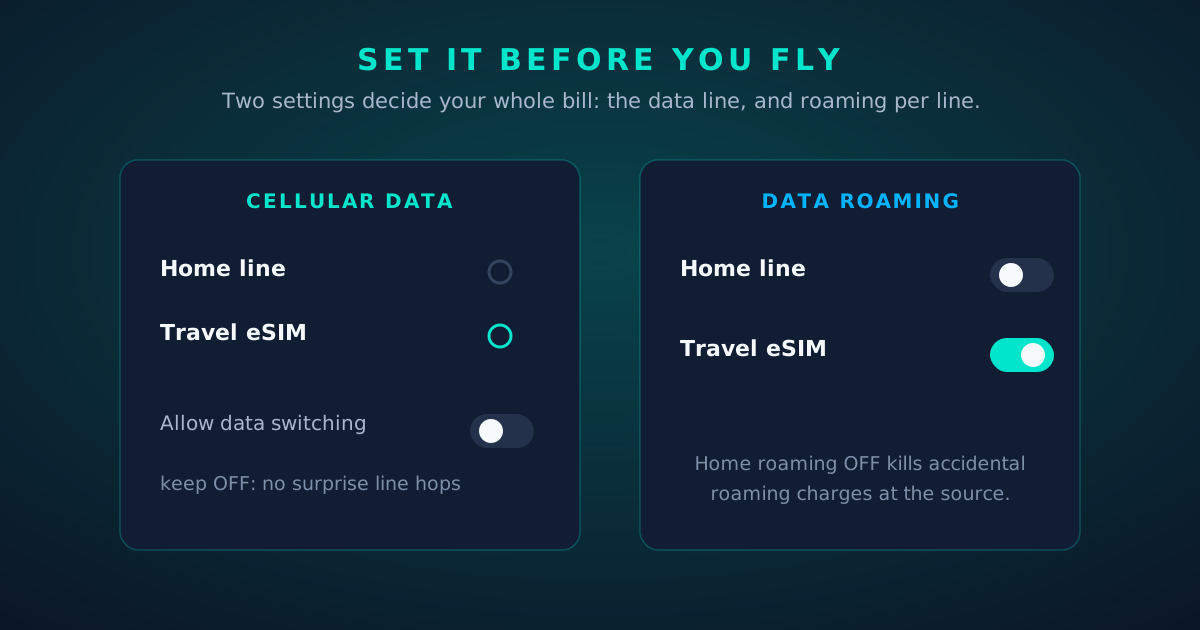
Two lines means two sets of settings that can disagree. The usual suspects:
When in doubt, simplify: temporarily disable the home line entirely and test the travel line alone. If it works solo, the problem is interaction, not the profile — re-enable the home line and re-check the three data-routing settings.
It happens: a mis-tap on "Delete eSIM" and the travel line vanishes. Here's the reality:
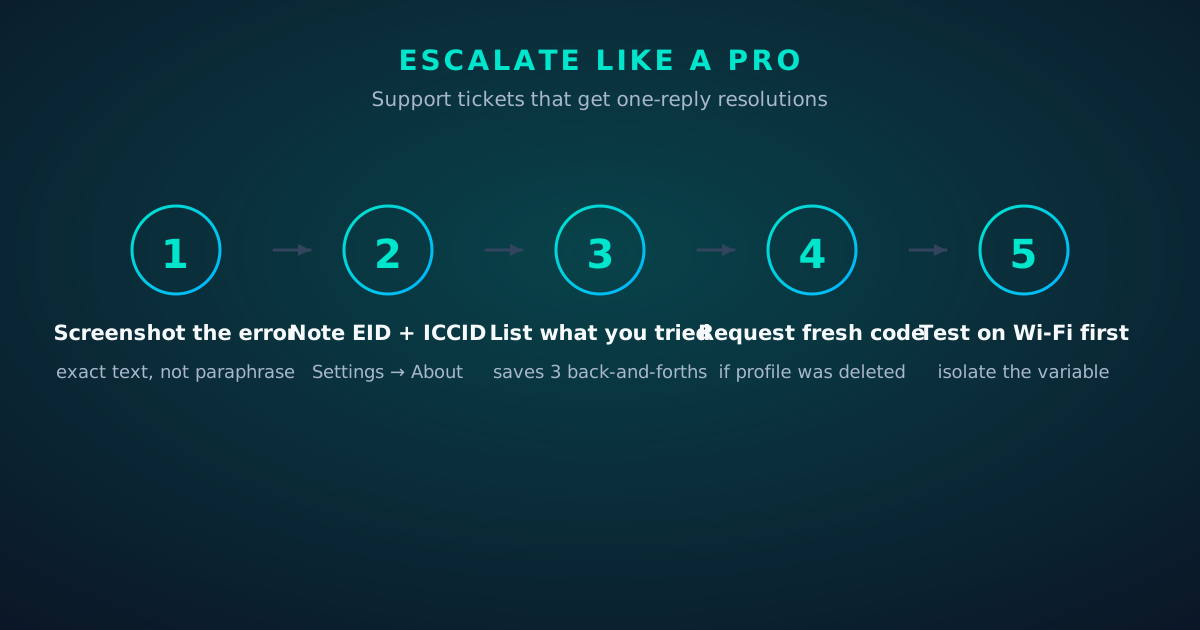
You've earned the right to escalate when: airplane-mode toggles, a restart, correct APN, correct data line, data roaming on, and a manual network selection have all failed. At that point the problem is likely on the provider or network side — provisioning, a spent activation code, or a roaming outage.
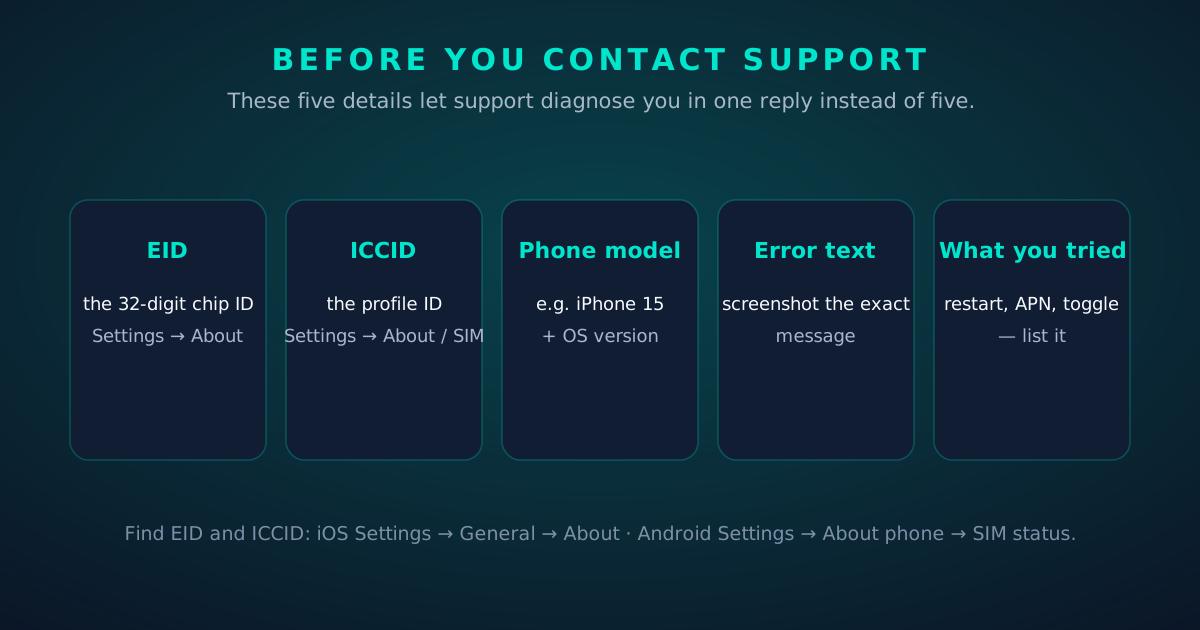
Make your support ticket a one-reply resolution by including:
Not sure what an EID or ICCID is? Our guide to phone identifiers explains both, including where to find them in under a minute.
How it works
Every screen below is the real flow: plans, coverage, speed and support, rendered for this page.























Explainer
Explainer
Install the eSIM now — it costs nothing to have it sitting on your phone waiting. Activation happens when you say so.
Then run through the travel tips checklist above. Ten minutes of preparation saves hours of airport problem-solving.
Reading about The eSIM Troubleshooting Guide is step zero. Step one is a two-minute action: check your phone is unlocked and eSIM-capable, then pick a plan sized to your next trip.
And the Tele Agent will walk through any of this conversationally if you'd rather talk than read.
The tools index turns article advice into instant answers — coverage checks, plan pickers and compatibility checks that take seconds.
Explainer
By the numbers
The eSIM Troubleshooting Guide — data dashboard
The numbers behind the story, switchable by dataset.
Hover any bar or point for its exact value. Tabs switch datasets — everything on this panel is computed from live product data unless labeled illustrative.
Join thousands of travelers who land connected. Your eSIM installs in two minutes.