Blog · Setup guides

How to install an eSIM on Android, step by step.

Samsung Galaxy or Google Pixel, the eSIM install takes minutes once you know where the menus hide. Both paths step-by-step, manual SM-DP+ entry, multi-profile management, and Android-specific troubleshooting.

eSIM guideUpdated September 2026By the esimgomobile team

Two paths, one standard

Android's eSIM flow follows the same GSMA standard as iPhone's — scan a code, download a profile, connect — but the menus wear different clothes on Samsung and Pixel, and a few Android-specific gotchas (carrier-branded variants, DSDS modes) deserve their own guide. That's this page: both major paths, manual entry, multi-profile management, and the fixes.
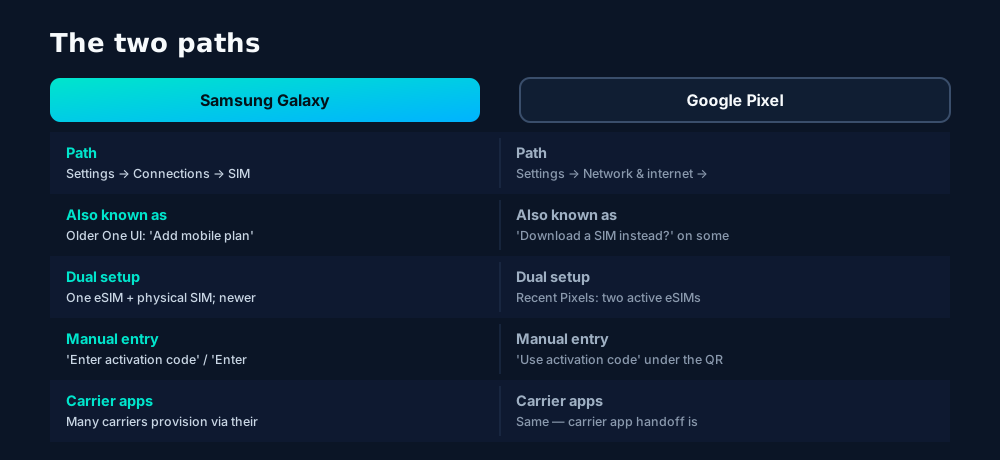
Samsung vs Pixel eSIM paths side by side: different menu names, the same underlying GSMA activation flow.
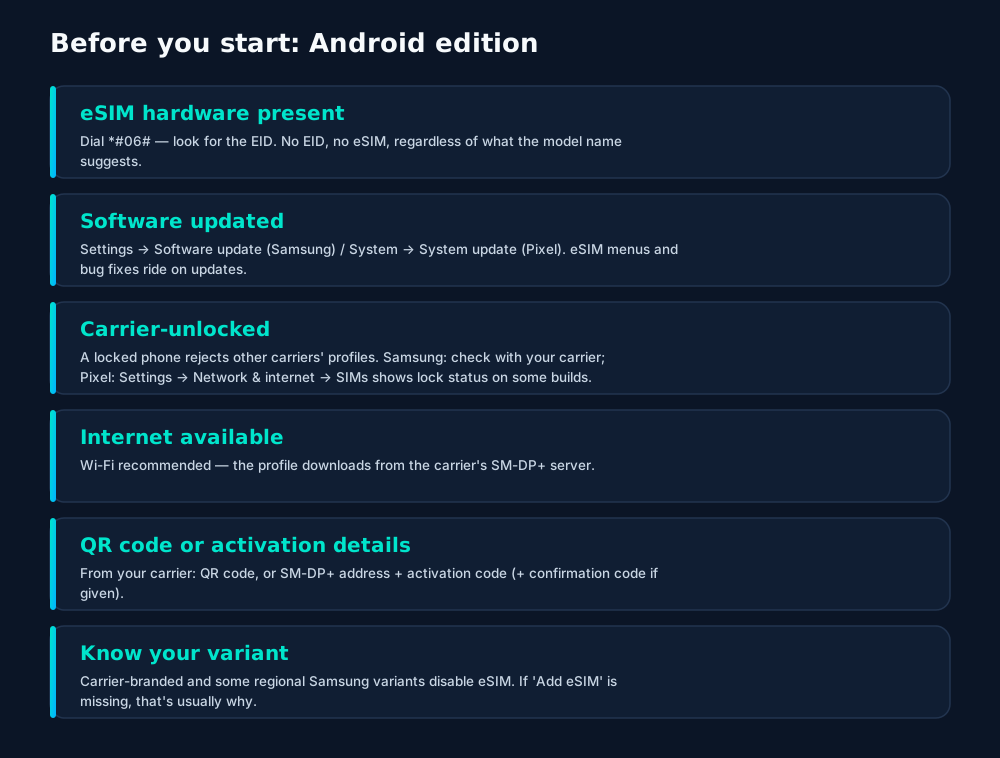
Android pre-install checklist: EID present, software updated, phone unlocked, internet available, and activation details in hand.

Step by step: Samsung and Pixel

Samsung Galaxy

  1. Open SIM manager

    Settings → Connections → SIM manager. This one screen controls every SIM in the phone.

  2. Tap "Add eSIM"

    Choose "Scan QR code". Frame the carrier's code and hold steady.

  3. Confirm the plan

    Check the carrier name and number, tap Add, and wait for the download — usually under a minute on Wi-Fi.

  4. Name it well

    "Travel – Japan" beats "eSIM 2" when you're choosing between profiles at midnight in an airport.

  5. Set preferred SIMs

    Back in SIM manager, set which SIM handles calls, texts and mobile data. Change anytime.
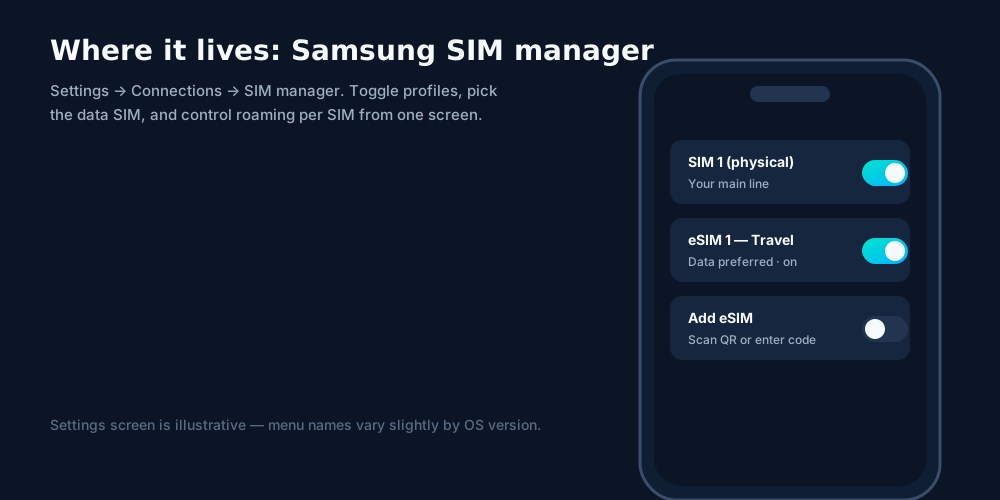
Samsung's SIM manager: physical SIM and eSIM profiles side by side, with per-SIM data and roaming controls.

Google Pixel

  1. Open SIM settings

    Settings → Network & internet → SIMs → Add eSIM (or "Download a SIM instead?").

  2. Scan or enter the code

    Scan the QR; if it won't read, tap "Use activation code" and type the details manually.

  3. Confirm and download

    Review, confirm, and wait for the profile to install.

  4. Configure the SIM

    Tap the new SIM to rename it, toggle it on/off, set data roaming, and pick data/call preferences.

Other Android phones

Motorola, Sony and other brands follow the same pattern — look under Settings → Network/Connections for "Add eSIM", "Download SIM" or a SIM-manager screen. Menu wording varies, but the underlying flow (scan → confirm → download → enable) is identical because it's the same GSMA standard.

QR or manual — your choice
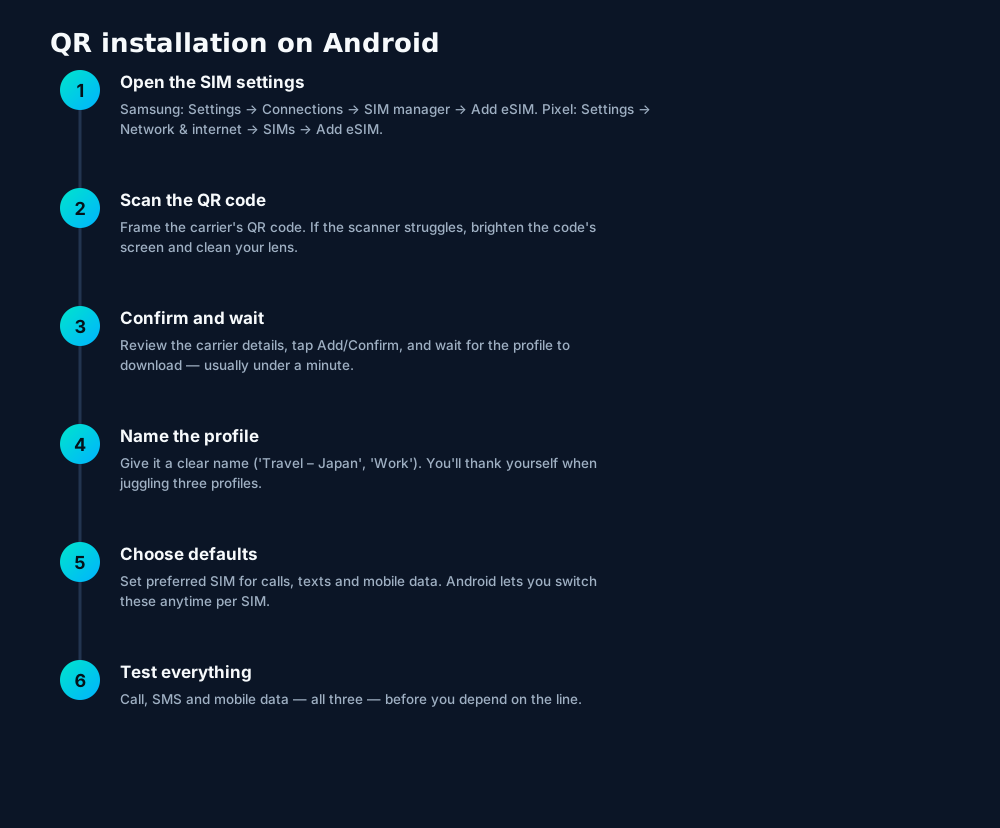
QR-based eSIM installation on Android in six steps: open the SIM settings, scan, confirm, name the profile, set defaults, and test.
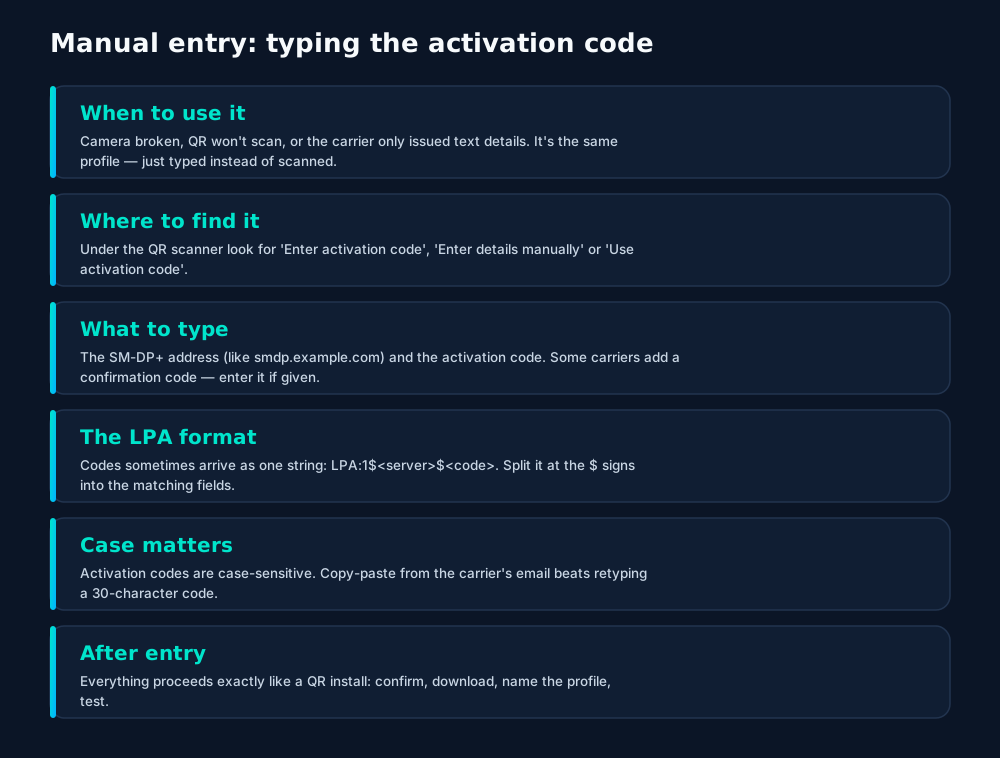
Manual eSIM activation on Android: when to use it, where the fields hide, and how to split an LPA:1$ address into its parts.

Managing multiple profiles

Android treats each profile as a SIM with its own switches — which is powerful once you set it up deliberately:

  • Preferred SIM per category: Samsung lets you assign calls, texts and mobile data to different SIMs independently; Pixel offers similar per-SIM preferences. Put data on the cheap travel eSIM while calls stay on your home number.
  • Data roaming per SIM: the single most important travel toggle. Roaming OFF on the home SIM, ON on the travel SIM.
  • Dual active lines: recent Pixels and newer Samsung flagships run two eSIMs simultaneously (DSDS). Older models do one eSIM + one physical SIM. Either way, both lines can receive calls.
  • Disabling vs deleting: toggling a profile off keeps it installed for next time (perfect for seasonal travel plans); deleting removes it entirely and usually requires a fresh code to get back.

Name profiles like you'll read them in a hurry. "Japan 30d – data" tells future-you everything; "eSIM 3" tells you nothing. Rename from the SIM's settings screen anytime.

Troubleshooting
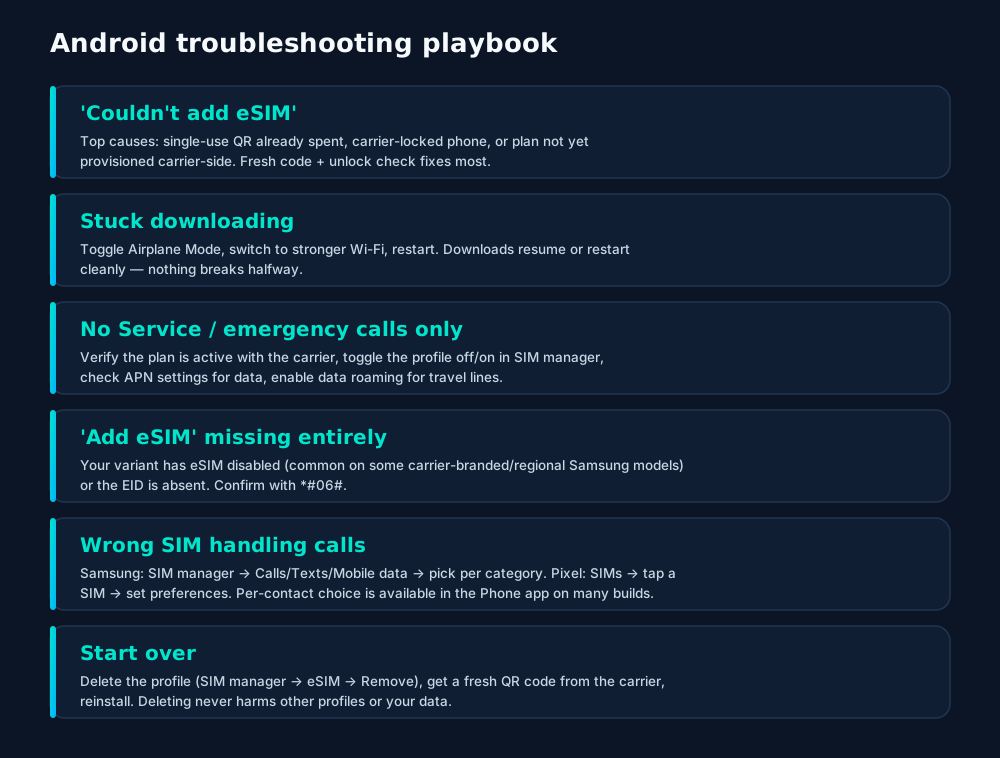
Android eSIM troubleshooting: the six failures you'll actually meet, and the fix order that resolves nearly all of them.

Install before you fly. Every fix above is ten times calmer on home Wi-Fi than on airport Wi-Fi. Install travel eSIMs the night before departure and test all three — calls, SMS, data — while support is still easy to reach.

Frequently asked questions

Where is the eSIM setting on Samsung?

Settings → Connections → SIM manager → Add eSIM. On older One UI versions it may read 'Add mobile plan'. If the menu is missing, your variant likely has eSIM disabled.

Where is the eSIM setting on Pixel?

Settings → Network & internet → SIMs → Add SIM / Download a SIM instead? Newer Pixels show 'Add eSIM' directly. Tap it, then scan or enter details manually.

Can Android phones use two eSIMs at once?

Recent Pixels and several Samsung flagships support two active eSIMs (dual eSIM / DSDS). Older models allow one eSIM + one physical SIM. Check your model's spec.

Does installing an eSIM erase my Android data?

No — it only adds carrier credentials. Your apps, photos and accounts are untouched. You can delete the profile later without affecting anything else.

Why does my Android say 'contact your carrier' during eSIM setup?

Usually the QR code was already used (most are single-use), the phone is carrier-locked, or the plan needs carrier-side activation first. Get a fresh code and confirm the line is provisioned.

Keep learning

Hand-picked next reads from the esimgomobile blog — and the product pages they point to.

Product tour

See the ideas in action.

Twenty product screens and twenty field photos — this is what traveling connected looks like.

Coverage
195
destinations live
How to Install an eSIM on Android 5G ready
Check coverage
Coverage at a glance for How to Install an eSIM on Android (2026): 195 destinations live, fastest local partner selected on its own.
  1. 1The Tele Agent answers in plain language — no telecom jargon.
  2. 2Every answer is specific to your trip, not a generic FAQ.
capturing nature with smartphone photography
Get connected
1 Pick a plan2 Scan QR3 Land online
Three steps on How to Install an eSIM on Android (2026): pick a plan, scan the QR, land online.
  1. 1A real traveler quote, tied to the destination it mentions.
  2. 2Reviews reference actual trips, not generic praise.
How to Install an eSIM on Android · coverage
5 carriers · automatic selection
Coverage map on How to Install an eSIM on Android (2026): partner networks pinned, selection automatic.
  1. 1Coverage pins show where partner networks are live.
  2. 2The map answers the only question that matters: will it work there?
Atlas 20GB
20 GB · 30 days
How to Install an eSIM on Android
Atlas 20GB — 20 GB · 30 days, prepaid and ready on How to Install an eSIM on Android (2026).
  1. 1Usage ring compresses the whole plan into one glanceable number.
  2. 2Percent remaining is the only metric most travelers check.
Language
日本語FrançaisPortuguês
Language picker on How to Install an eSIM on Android (2026) — 日本語, Français, Português: the app speaks six languages.
  1. 1Signal widget: network generation and destination, always visible.
  2. 2Five bars, zero ambiguity about what you're connected to.
Why travelers pick it
  • Keep WhatsApp number
  • Instant QR install
  • 5G where available
Why travelers pick How to Install an eSIM on Android (2026): Keep WhatsApp number, Instant QR install, 5G where available.
  1. 1Coverage status at a glance: data live, number available, 5G ready.
  2. 2Green means go — no guessing about what's supported.
How to Install an eSIM on Android · 5G
Signal widget on How to Install an eSIM on Android (2026): network generation and place, always visible.
  1. 1Signal widget: network generation and destination, always visible.
  2. 2Five bars, zero ambiguity about what you're connected to.
Install
1 Scan2 Add3 Go
The How to Install an eSIM on Android (2026) install: QR in three steps — scan, add, go, about two minutes.
  1. 1Live usage ring: see remaining data at a glance, no mental math.
  2. 2Top-up button sits right where you need it when data runs low.
eSIM installedYour How to Install an eSIM on Android plan is ready.
Push · just now
Push notification on How to Install an eSIM on Android (2026): eSIM installed, plan ready to activate.
  1. 1The roaming math, made visible: one price versus per-day carrier fees.
  2. 2This is the comparison most travelers never see until the bill.
Launch facts
195destinations live
31free tools
$8entry monthly plan
Launch facts behind How to Install an eSIM on Android (2026) — 195 destinations live, 31 free tools, $8 entry monthly plan: numbers we publish and stand behind.
  1. 1A real support transcript: the question, then the specific answer.
  2. 2This is what 'AI support' actually looks like in practice.
Recent speeds
Seoul787 Mbps
Bali670 Mbps
Tokyo134 Mbps
Recent speeds for How to Install an eSIM on Android (2026) — Seoul, Bali, Tokyo: illustrative 5G figures, not live measurements.
  1. 1Coverage pins show where partner networks are live.
  2. 2The map answers the only question that matters: will it work there?
esimgomobile.com
Plans for How to Install an eSIM on Android
Atlas 5GB5 GB · 30 days
Atlas 20GB20 GB · 30 days
Atlas 50GB50 GB · 60 days
Compare plans
Plan picker on How to Install an eSIM on Android (2026): 5GB, 20GB, 50GB and Unlimited — pick by trip, not fine print.
  1. 1The dashboard keeps every eSIM, every trip, in one place.
  2. 2Rows show data left, days left and current city at a glance.
Virtual number
+1 205 747 8460
Routes toHow to Install an eSIM on Android
SMS + voiceEnabled
Your second line on How to Install an eSIM on Android (2026): +1 205 747 8460 — real number, SMS and voice enabled.
  1. 1A real traveler quote, tied to the destination it mentions.
  2. 2Reviews reference actual trips, not generic praise.
Tele Agent
“Setting up your How to Install an eSIM on Android line…”
AI voice agent on How to Install an eSIM on Android (2026) — answers spoken aloud, never a support ticket.
  1. 1Live usage ring: see remaining data at a glance, no mental math.
  2. 2Top-up button sits right where you need it when data runs low.
esimgomobile.com
Checkout
Atlas 20GB — How to Install an eSIM on Android total
Taxescalculated
Pay securely
256-bit encrypted · Amazon Pay
Secure checkout on How to Install an eSIM on Android (2026): Atlas 20GB, full price up front, no fine print.
  1. 1The dashboard keeps every eSIM, every trip, in one place.
  2. 2Rows show data left, days left and current city at a glance.
Support
How does How to Install an eSIM on Android (2026) work?
Enter your trip details and get an instant answer — no account needed.
Support snippet — How to Install an eSIM on Android (2026): what it does, in one honest answer.
  1. 1The roaming math, made visible: one price versus per-day carrier fees.
  2. 2This is the comparison most travelers never see until the bill.
vs roaming
esimgomobile eSIMone price
Carrier roamingper-day fees
10 GB · 14 days · How to Install an eSIM on Android
The honest comparison on How to Install an eSIM on Android (2026): one prepaid eSIM price versus carrier roaming.
  1. 1A real traveler quote, tied to the destination it mentions.
  2. 2Reviews reference actual trips, not generic praise.
esimgomobile.com
Dashboard
Active eSIMs4
Data left20 GB
Current cityHow to Install an eSIM on Android
Web dashboard on How to Install an eSIM on Android (2026): every eSIM, every trip, 20 GB left — one screen.
  1. 1Checkout shows the full price before you pay. Nothing hidden.
  2. 2Amazon Pay handles payment securely; taxes are calculated for you.
92%
data left
Usage ring on How to Install an eSIM on Android (2026) — 92% of data left: the number travelers check most.
  1. 1Signal widget: network generation and destination, always visible.
  2. 2Five bars, zero ambiguity about what you're connected to.
Speed test
340Mbps
5G · How to Install an eSIM on Android · 49 ms
Illustrative speed readout on How to Install an eSIM on Android (2026): 340 Mbps, 49 ms — example figures, not live measurements.
  1. 1The plan card shows exactly what you're buying — data, days, destination.
  2. 2One tap starts the two-minute QR install.

landscape view of greece during day time — The last night: photo album backed up, memories safe before wheels-up.
The last night: photo album backed up, memories safe before wheels-up.
QUI NGUYEN — Hiking the ridge: trail map offline, emergency numbers saved.
Hiking the ridge: trail map offline, emergency numbers saved.
graffiti laden rooftop overlooking new york skyline — The night bus: entertainment downloaded, messages queued, rest easy.
The night bus: entertainment downloaded, messages queued, rest easy.
Rosaria Sapuppo — Sunrise hikes start with a weather check — data on, boots on.
Sunrise hikes start with a weather check — data on, boots on.
a person holding a headset — The red-eye recovery: hotel early-check-in arranged mid-flight.
The red-eye recovery: hotel early-check-in arranged mid-flight.
Zizi zi — Golden hour, fully online — photo backups upload before dinner.
Golden hour, fully online — photo backups upload before dinner.
friends relaxing on malay beach in the philippines — Market mornings: look up the dish, translate the menu, pay by phone.
Market mornings: look up the dish, translate the menu, pay by phone.
Ignacio Estevo — From departure lounge to arrival hall, the data never drops.
From departure lounge to arrival hall, the data never drops.
silhouette photography of group of people jumping during golden time — Souvenir hunting with live currency conversion in your pocket.
Souvenir hunting with live currency conversion in your pocket.
eiffel tower in paris skyline — Real journeys, real connectivity — this is what the product is for.
Real journeys, real connectivity — this is what the product is for.
Mikhail Nilov — Old town, new tricks: translation apps working in real time.
Old town, new tricks: translation apps working in real time.
vibrant nightlife in tokyo s busy streets — Coast roads and country lanes — the map keeps up wherever you roam.
Coast roads and country lanes — the map keeps up wherever you roam.
couples walking on the sandy beach — Street level: navigation, rideshares and reviews, all instant.
Street level: navigation, rideshares and reviews, all instant.
hiker expressing satisfaction after climbing a mountain — Downtown, connected: the eSIM finds the fastest local network on its own.
Downtown, connected: the eSIM finds the fastest local network on its own.
aerial view from plane window showing clouds — Rainy-day backup plan: indoor attractions researched from the hostel bunk.
Rainy-day backup plan: indoor attractions researched from the hostel bunk.
a woman in black blazer sitting at the desk with documents — Platform to platform: tickets, timetables and taxis in one hand.
Platform to platform: tickets, timetables and taxis in one hand.
view from airplane window at sunset — The food tour: every recommendation looked up on the spot.
The food tour: every recommendation looked up on the spot.
person video calling using a laptop — Rain or shine, the connection holds — weather doesn't throttle data.
Rain or shine, the connection holds — weather doesn't throttle data.
man on a video call — Check-in lines move faster when your documents are on your phone.
Check-in lines move faster when your documents are on your phone.
new york city skyline during night time — Plazas and promenades: video calls home with the view behind you.
Plazas and promenades: video calls home with the view behind you.

Explainer

Key takeaways

  • The core idea: How to Install an eSIM on Android (2026) matters because connectivity shapes the whole trip, not just the phone bill.
  • When something goes wrong abroad, the fix is almost always: toggle airplane mode, check the eSIM line is enabled, then ask the Tele Agent.
  • Setup beats improvisation — every tip in this article works best arranged before departure.
  • Match the plan to the trip length and your heaviest single use-case, then stop thinking about it.
  • Data-first eSIMs keep your number and your apps; the only thing that changes is the price.

Explainer

Putting it into practice

Reading about How to Install an eSIM on Android (2026) is step zero. Step one is a two-minute action: check your phone is unlocked and eSIM-capable, then pick a plan sized to your next trip.

Install the eSIM now — it costs nothing to have it sitting on your phone waiting. Activation happens when you say so.

Then run through the travel tips checklist above. Ten minutes of preparation saves hours of airport problem-solving.

Go deeper

The tools index turns article advice into instant answers — coverage checks, plan pickers and compatibility checks that take seconds.

And the Tele Agent will walk through any of this conversationally if you'd rather talk than read.

Explainer

Common mistakes to avoid

  • Disabling the wrong line: label your eSIM clearly in phone settings.
  • Buying data at the airport: the most expensive megabyte is the panicked one.
  • Forgetting two-factor: banks text your home number — keep that SIM active.
  • Assuming hotel Wi-Fi will do: it won't, at the exact moment you need it most.
  • Ignoring the 80% alert: top up early; data never gets cheaper mid-trip.

The data room

Every chart that matters for How to Install an eSIM on Android (2026).

How to Install an eSIM on Android (2026) — data dashboard

The numbers behind the story, switchable by dataset.

3
steps to connect
pick, scan, land
195
destinations
one eSIM
~2 min
install time
QR code
24/7
support
human + AI
Maps & navigation: ≈5 MB/hourMaps & nav ≈200 h / GBMessaging & email: ≈20 MB/hourMessaging ≈50 h / GBSocial browsing: ≈150 MB/hourSocial ≈6.7 h / GBVideo calls: ≈600 MB/hourVideo calls ≈1.7 h / GBHD streaming: ≈1.5 GB/hourStreaming ≈40 min / GB
Atlas 5GB: 5 GB — Weekend breaks & light useAtlas 5GB 5 GBAtlas 20GB: 20 GB — Two-week trips & daily useAtlas 20GB 20 GBAtlas 50GB: 50 GB — Remote work & hotspottingAtlas 50GB 50 GBAtlas Unlimited: Unlimited — Heavy use, zero meteringAtlas Unlimited Unlimited
Illustrative — Wk 1: 90% of maxIllustrative — Wk 2: 62% of maxIllustrative — Wk 3: 38% of maxIllustrative — Wk 4: 15% of maxWeek 1Week 2Week 3Week 4IllustrativeIllustrative 20 GB burn-down at moderate use — your mileage varies.

Hover any bar or point for its exact value. Tabs switch datasets — everything on this panel is computed from live product data unless labeled illustrative.

How to Install an eSIM on Android (2026) — data dashboard. Usage rates, plan sizes and a typical burn-down curve — the numbers behind “How to Install an eSIM on Android (2026)”.
TakeawaysIf you remember nothing else, remember thisTakeawaysThe article in four sentences.Install earlyBuy before you fly — setup takes two minutes, not two hours.Size it right5 GB weekends, 20 GB fortnights, 50 GB+ for work trips.Prepaid = calmNo contracts means no surprise charges, ever.eSIM firstFor most trips, a prepaid eSIM beats roaming on price and convenience.
Takeaways. Skim these, then dive into the sections that matter to you.
What your gigabytes meanTypical hourly usage per activityWhat your gigabytes meanTranslate plan sizes into real travel behavior.Maps & navigation≈ 5 MB / hourMessaging & email≈ 20 MB / hourSocial browsing≈ 150 MB / hourVideo calls≈ 600 MB / hourHD streaming≈ 1.5 GB / hourTypical usage rates — actual consumption varies by app and quality settings.
Data usage guide. A 20 GB plan covers roughly two weeks of normal travel use.
Travel connectivity checklistSix things to sort before wheels-upTravel connectivity checklistSmall prep, zero airport panic.Install before you flyAirport Wi-Fi is the worst place to set up connectivity.Screenshot bookingsHotel address & confirmations, available with no signal.Check unlock statusCarrier-locked phones can't add an eSIM — verify first.Set an 80% alertA top-up should never surprise you mid-trip.Download offline mapsThey save data and work in dead zones.Keep home SIM for 2FABank codes still arrive while data runs on the eSIM.
Pre-flight checklist. Six habits, ten minutes of prep — the How to Install an eSIM on Android (2026) checklist.
Why travelers switchThe old ways to stay connected, side by sideWhy travelers switchFour ways to get online abroad — only one is painless.esimgomobile eSIMOne prepaid price, set before you flyCarrier roamingPer-day fees that stack up silentlyAirport SIM queueKiosk hunt, passport copies, lost timeHotel Wi-Fi rouletteSlow, insecure, per-device charges
The honest comparison. Four ways to get online abroad — the How to Install an eSIM on Android (2026) verdict, side by side.
How to Install an eSIM on Android (2026): key numbersThe figures behind the storyKey numbersThe figures this guide keeps coming back to.3steps to get connectedesimgomobile network data195destinations coveredesimgomobile network data2 minto install an eSIMesimgomobile network data24/7support, human + AIesimgomobile network dataNumbers from the esimgomobile network — verified, not vibes.
Key numbers. The four figures anchoring How to Install an eSIM on Android (2026).
Get connected in three stepsFrom purchase to online in about two minutesGet connected in three stepsNo store visit, no plastic SIM, no waiting for the post.1Land connectedSwitch the line on when you arrive — online before baggage claim.2Scan the QR codeThe eSIM installs straight onto your phone. No store, no plastic SIM.3Pick your planChoose data for your trip — checkout takes about two minutes.
Three-step setup. Three steps, about two minutes — the How to Install an eSIM on Android (2026) ritual, no store visit.
Every plan includesNo tiers of basic dignity — these ship with all plansEvery plan includesThe baseline is generous on purpose.One-tap top-upMore data in seconds — no new QR code.6 languagesThe app speaks your language, wherever you're from.Hotspot includedShare with your laptop or tablet at no extra cost.Keep your WhatsAppYour existing number keeps working on the data line.24/7 supportReal humans plus the Tele Agent, around the clock.5G where availableFastest local partner network, selected automatically.
Included with every plan. From 5 GB to Unlimited, the inclusions don't shrink.
Questions, answeredThe six things everyone asks firstQuestions, answeredShort answers, no sales pitch.How fast is setup?
About two minutes: plan, QR scan, done.
Does hotspot work?
Yes — share your connection with laptop or tablet.
Which phones work?
Any carrier-unlocked, eSIM-capable iPhone or Android.
Is it a contract?
No — prepaid. Service simply stops instead of charging extra.
What if data runs out?
80% alert, then one-tap top-up. No bill shock.
Do I keep my number?
Yes — WhatsApp & iMessage keep working on your existing number.
FAQ at a glance. Six questions every traveler asks — the How to Install an eSIM on Android (2026) answers, one screen.
Your action planTurn reading into doingYour action planFour moves from this page to connected.1Check your phoneCarrier-unlocked and eSIM-capable? You're good to go.2Pick a planMatch gigabytes to trip length — the matrix above helps.3Install the eSIMScan the QR code. Two minutes, done.4Land connectedSwitch the line on at arrival and go.
Action plan. From reading How to Install an eSIM on Android (2026) to landing connected.
Pro tipsFour habits of the always-connectedPro tipsSmall habits, big difference.1Download offline mapsThey save data and work in dead zones.2Install before you flyAirport Wi-Fi is the worst place to set up connectivity.3Keep home SIM for 2FABank codes still arrive while data runs on the eSIM.4Set an 80% alertA top-up should never surprise you mid-trip.
Pro tips. Four habits for smooth trips — pro tips for How to Install an eSIM on Android (2026).

Your plan is two minutes away

Join thousands of travelers who land connected. Your eSIM installs in two minutes.

See plans and pricing Talk to the Tele Agent