Blog · Setup guides

How to install an eSIM on iPhone, step by step.

From QR scan to signal bars in about two minutes: the complete iPhone eSIM installation guide — QR code, manual entry, carrier apps, eSIM Quick Transfer, dual-SIM setup and every common error fixed.

eSIM guideUpdated September 2026By the esimgomobile team

Before you start

Installing an eSIM on an iPhone is one of those tasks that sounds technical and takes about two minutes. Apple has refined the flow for years: you scan a code (or tap a button), the phone fetches your carrier profile over the internet, and the signal bars appear. This guide covers all three installation methods, dual-SIM setup, and every common failure — so nothing surprises you.
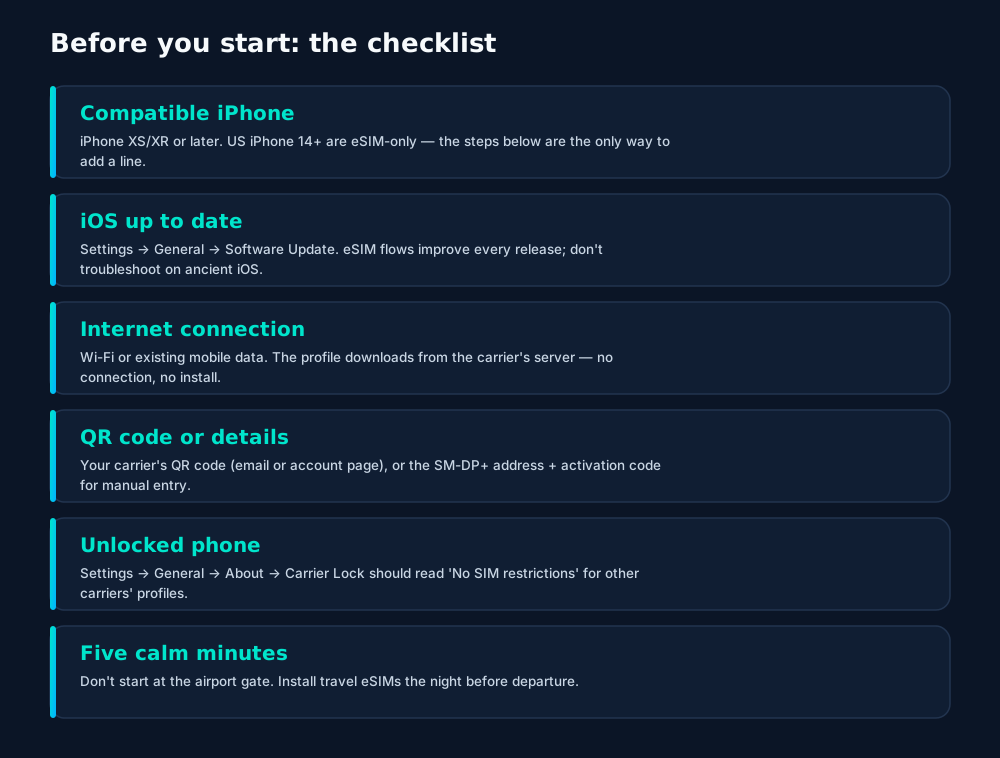
The pre-install checklist for iPhone: compatible model, updated iOS, an internet connection, your QR code or activation details, an unlocked phone, and five unhurried minutes.

Method 1: QR code

This is the method your carrier expects you to use. The QR code usually arrives by email seconds after purchase, or sits in your carrier account page.
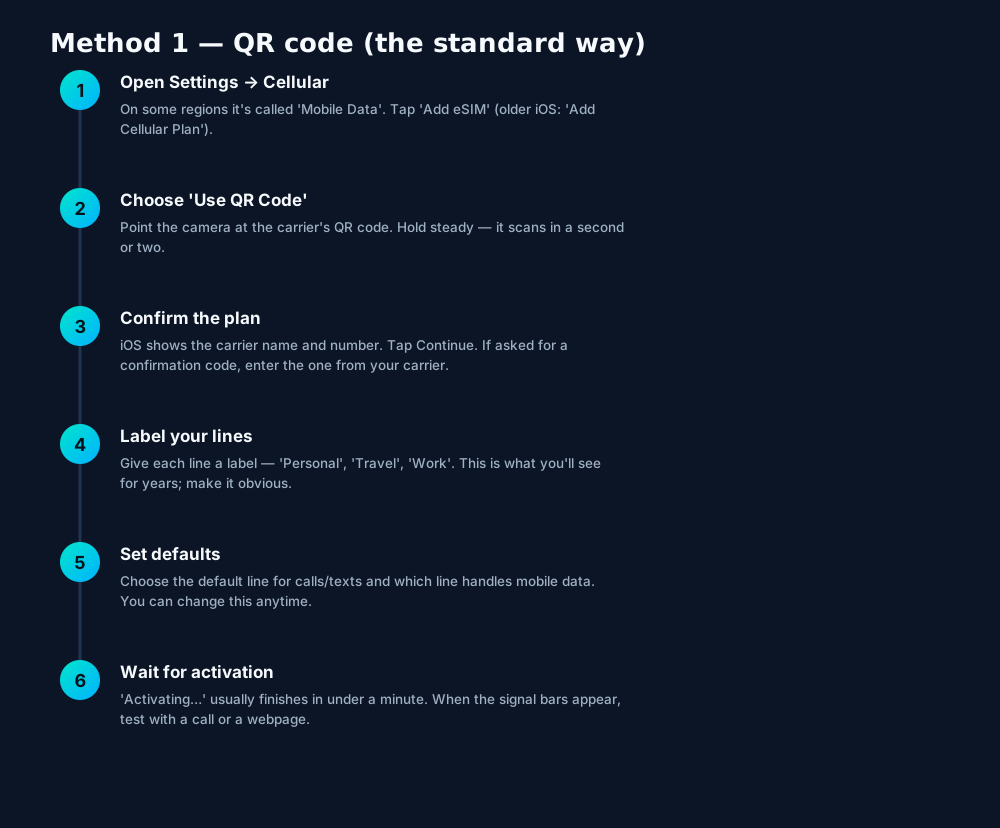
Installing an eSIM on iPhone with a QR code: six steps from Settings → Cellular to signal bars in about two minutes.

Most QR codes are single-use. Once scanned, the code is spent — if the install fails halfway, you'll likely need a fresh code from the carrier rather than re-scanning. Screenshot the code anyway (it sometimes helps support identify your order), but don't rely on re-scanning it.

Other methods: manual, app & Quick Transfer

Method 2 — manual entry

No working camera, or the QR just won't scan? Go to Settings → Cellular → Add eSIM → Use QR Code → Enter Details Manually and type the SM-DP+ address and activation code from your carrier (format looks like LPA:1$smdp.example.com$ABC123 — you only type the parts after the dollars). It's slower but byte-for-byte equivalent to scanning.

Method 3 — carrier app or website

Many carriers now provision from their own app: buy the plan in-app, tap "Install eSIM", and iOS takes over via the universal link. Same result, fewer codes to juggle.
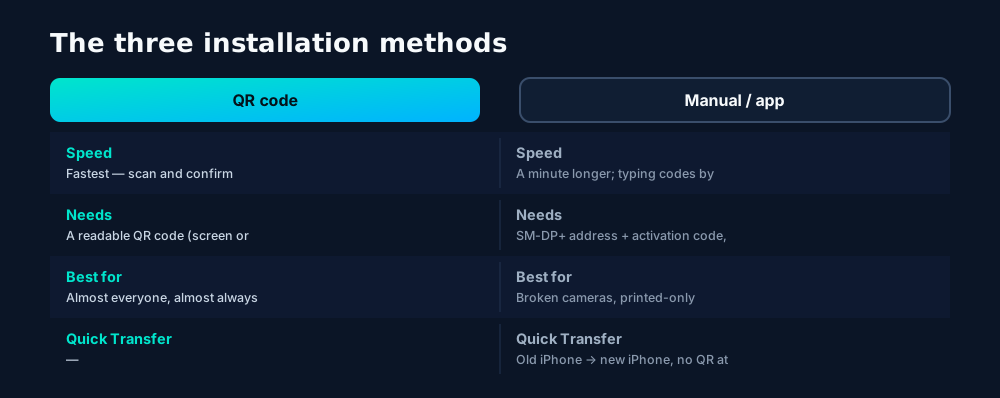
Three ways to get a profile onto an iPhone: QR code (fastest), manual entry or carrier app (the fallback), and eSIM Quick Transfer between iPhones.

eSIM Quick Transfer (iPhone to iPhone)

Upgrading phones? You may never need a QR code again. During new-iPhone setup — or anytime via Settings → Cellular → Add eSIM — choose Transfer from Nearby iPhone:
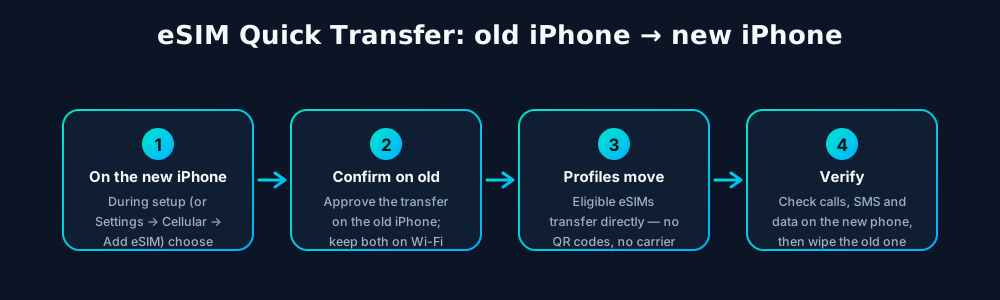
eSIM Quick Transfer moves profiles directly from an old iPhone to a new one during setup — no QR codes or carrier calls for eligible lines.

Not every carrier supports Quick Transfer for every plan type; if the option doesn't appear, fall back to a fresh QR code from the carrier. Either way, verify the new phone fully works before wiping the old one.

Setting up dual SIM properly

Two lines on one iPhone is genuinely useful — home + travel, work + personal — but only if you label things. iOS lets each line have its own ringtone-length identity:
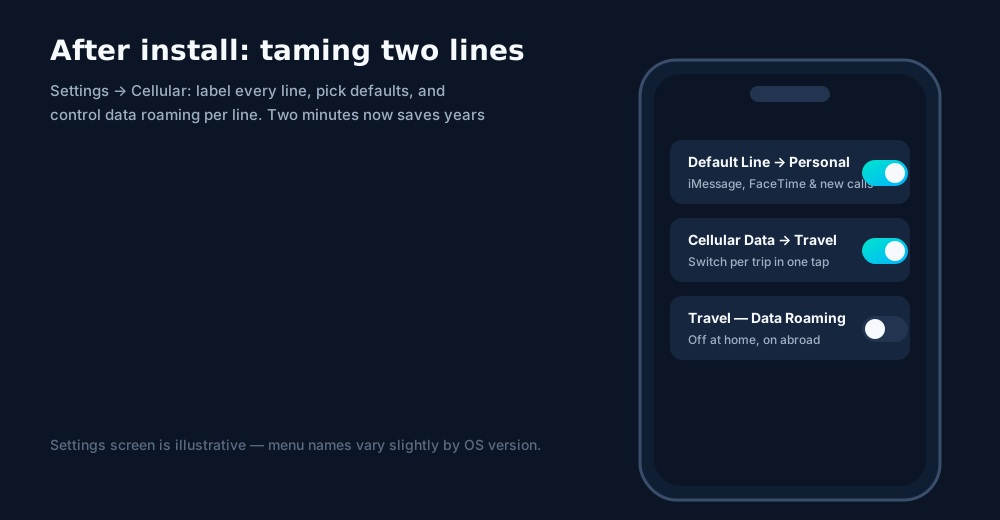
Dual-SIM housekeeping on iPhone: label each line, set the default line and the data line, and manage data roaming per line.
  • Default Line: used for new calls, SMS and iMessage/FaceTime registration. Change it per contact: open any contact, tap the line label under their name, and pin that person to a specific line forever.
  • Cellular Data line: switchable in one tap from Settings → Cellular → Cellular Data — or set "Allow Cellular Data Switching" and let iOS pick the stronger signal.
  • Data Roaming per line: keep roaming OFF on your home line abroad (bill shock lives here) and ON for the travel line.

Troubleshooting

Ninety percent of eSIM problems are one of six things. Work through this list before calling support — you'll usually fix it yourself:
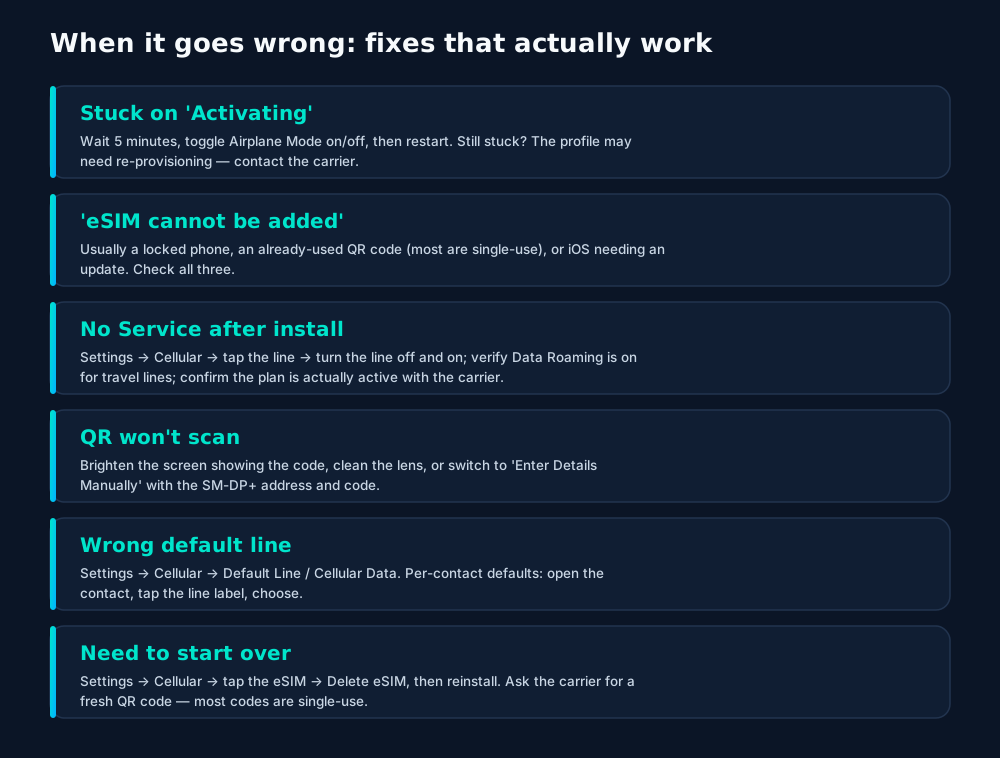
iPhone eSIM troubleshooting: fixes for stuck activation, failed installs, No Service, unscannable QR codes, and starting over cleanly.

Travel timing tip. Install travel eSIMs the night before you fly, on home Wi-Fi, while you can still reach support. Installing at the destination works fine — but debugging is much calmer from your sofa than from an arrivals hall.

Frequently asked questions

How long does eSIM installation take on iPhone?

About two minutes when everything goes smoothly: scan the QR code, confirm, wait for 'Activating' to finish. Budget ten minutes the first time so you're not rushed.

Do I need Wi-Fi to install an eSIM?

Yes — the profile downloads from the carrier's server over the internet. Use Wi-Fi or your existing mobile data; don't start the install with no connection at all.

Will installing an eSIM delete anything on my iPhone?

No. Installing a profile only adds carrier credentials. It doesn't touch photos, apps, or settings — though it's wise to choose clear labels for each line afterwards.

What is 'Convert to eSIM' on iPhone?

A one-tap option (Settings → Cellular → Convert to eSIM, on supported carriers) that moves your existing physical-SIM line onto the eSIM without a QR code or store visit.

Can I install the same eSIM on two iPhones?

No — a profile is bound to one device's eUICC. To move it, delete/transfer from the old phone and install fresh on the new one (eSIM Quick Transfer or a new QR code from your carrier).

Keep learning

Hand-picked next reads from the esimgomobile blog — and the product pages they point to.

Product tour

See the ideas in action.

Twenty product screens and twenty field photos — this is what traveling connected looks like.
modern smartphone triple camera close up shot
Pack light. Stay connected on your trip.
Get your eSIM
“Pack light. Stay connected on your trip.” — the banner on How to Install an eSIM on iPhone (2026): two minutes from curious to connected.
  1. 1Mockups illustrate the product flow — captions describe what's real.
  2. 2Figures labeled as examples show sample data, never live telemetry.
esimgomobile.com
Plans for How to Install an eSIM on iPhone (
Atlas 5GB5 GB · 30 days
Atlas 20GB20 GB · 30 days
Atlas 50GB50 GB · 60 days
Compare plans
Plan picker on How to Install an eSIM on iPhone (2026): 5GB, 20GB, 50GB and Unlimited — pick by trip, not fine print.
  1. 1Checkout shows the full price before you pay. Nothing hidden.
  2. 2Amazon Pay handles payment securely; taxes are calculated for you.
31
free tools
launch fact
Launch fact behind How to Install an eSIM on iPhone (2026): 31 free tools — a fixed figure, not live telemetry.
  1. 1Coverage status at a glance: data live, number available, 5G ready.
  2. 2Green means go — no guessing about what's supported.
Speed test
185Mbps
5G · How to Install an eSIM on iPhone ( · 70 ms
Illustrative speed readout on How to Install an eSIM on iPhone (2026): 185 Mbps, 70 ms — example figures, not live measurements.
  1. 1The plan card shows exactly what you're buying — data, days, destination.
  2. 2One tap starts the two-minute QR install.
Why travelers pick it
  • 24/7 support
  • 5G where available
  • One-tap top-up
Why travelers pick How to Install an eSIM on iPhone (2026): 24/7 support, 5G where available, One-tap top-up.
  1. 1Coverage status at a glance: data live, number available, 5G ready.
  2. 2Green means go — no guessing about what's supported.
Support
How does How to Install an eSIM on iPhone (2026) work?
Enter your trip details and get an instant answer — no account needed.
Support snippet — How to Install an eSIM on iPhone (2026): what it does, in one honest answer.
  1. 1A real traveler quote, tied to the destination it mentions.
  2. 2Reviews reference actual trips, not generic praise.
Launch facts
195destinations live
31free tools
$8entry monthly plan
Launch facts behind How to Install an eSIM on iPhone (2026) — 195 destinations live, 31 free tools, $8 entry monthly plan: numbers we publish and stand behind.
  1. 1Coverage pins show where partner networks are live.
  2. 2The map answers the only question that matters: will it work there?

people on a video call
Ready for your trip?
Get your eSIM
Live now · no waitlist
“Ready for your trip?” — the CTA card on How to Install an eSIM on iPhone (2026): plans live now, no waitlist.
  1. 1Coverage status at a glance: data live, number available, 5G ready.
  2. 2Green means go — no guessing about what's supported.
esimgomobile.com
API quickstart
curl https://api.esimgomobile.com/v1/esims \
  -H "Authorization: Bearer $KEY" \
  -d '{"country":"HO"}'
200 OK · 118 ms
REST API behind How to Install an eSIM on iPhone (2026): issue eSIMs programmatically — 200 OK in milliseconds.
  1. 1The dashboard keeps every eSIM, every trip, in one place.
  2. 2Rows show data left, days left and current city at a glance.
Tele Agent
“Setting up your How to Install an eSIM on iPhone ( line…”
AI voice agent on How to Install an eSIM on iPhone (2026) — answers spoken aloud, never a support ticket.
  1. 1Live usage ring: see remaining data at a glance, no mental math.
  2. 2Top-up button sits right where you need it when data runs low.

esimgomobile.com
Gerhard Lipold
How to Install an eSIM on iPhone (2026)
Travel guides · 8 min read
From the blog: “How to Install an eSIM on iPhone (2026)” — travel guides in about eight minutes.
  1. 1Three plans side by side so the trade-off is obvious.
  2. 2Pick by trip length, not by decoding fine print.
Language
FrançaisDeutschEnglish
Language picker on How to Install an eSIM on iPhone (2026) — Français, Deutsch, English: the app speaks six languages.
  1. 1The plan chip: name, allowance and destination in one line.
  2. 2Everything you need to confirm you're on the right plan.
Virtual number
+1 205 919 9563
Routes toHow to Install an eSIM on iPhone (
SMS + voiceEnabled
Your second line on How to Install an eSIM on iPhone (2026): +1 205 919 9563 — real number, SMS and voice enabled.
  1. 1The roaming math, made visible: one price versus per-day carrier fees.
  2. 2This is the comparison most travelers never see until the bill.
Coverage
195
destinations live
How to Install an eSIM on iPhone (5G ready
Check coverage
Coverage at a glance for How to Install an eSIM on iPhone (2026): 195 destinations live, fastest local partner selected on its own.
  1. 1Illustrative speed readout: sample carrier, city and latency figures.
  2. 2The meter demonstrates the readout — figures are examples, not live measurements.
eSIM installedYour How to Install an eSIM on iPhone ( plan is ready.
Push · just now
Push notification on How to Install an eSIM on iPhone (2026): eSIM installed, plan ready to activate.
  1. 1Coverage status at a glance: data live, number available, 5G ready.
  2. 2Green means go — no guessing about what's supported.
Recent speeds
Rome288 Mbps
Seoul423 Mbps
Bangkok474 Mbps
Recent speeds for How to Install an eSIM on iPhone (2026) — Rome, Seoul, Bangkok: illustrative 5G figures, not live measurements.
  1. 1A real support transcript: the question, then the specific answer.
  2. 2This is what 'AI support' actually looks like in practice.
How to Install an eSIM on iPhone ( · 5G
Signal widget on How to Install an eSIM on iPhone (2026): network generation and place, always visible.
  1. 1Signal widget: network generation and destination, always visible.
  2. 2Five bars, zero ambiguity about what you're connected to.
vs roaming
esimgomobile eSIMone price
Carrier roamingper-day fees
10 GB · 14 days · How to Install an eSIM on iPhone (
The honest comparison on How to Install an eSIM on iPhone (2026): one prepaid eSIM price versus carrier roaming.
  1. 1A real traveler quote, tied to the destination it mentions.
  2. 2Reviews reference actual trips, not generic praise.
My eSIM
54%20 GB left
Days left12
Top up+10 GB
Data dashboard on How to Install an eSIM on iPhone (2026): 54% remaining, days left, top-up one tap away.
  1. 1Illustrative speed readout: sample carrier, city and latency figures.
  2. 2The meter demonstrates the readout — figures are examples, not live measurements.
Network
5G
How to Install an eSIM on iPhone ( connected
Network widget for How to Install an eSIM on iPhone (2026): 5G, full bars — zero ambiguity about the connection.
  1. 1Live usage ring: see remaining data at a glance, no mental math.
  2. 2Top-up button sits right where you need it when data runs low.

Neacsu Tudor — Museum afternoons with audio guides streaming, not buffering.
Museum afternoons with audio guides streaming, not buffering.
one world trade center new york — The museum queue skips itself: tickets bought online, straight to the door.
The museum queue skips itself: tickets bought online, straight to the door.
eberhard grossgasteiger — Coast roads and country lanes — the map keeps up wherever you roam.
Coast roads and country lanes — the map keeps up wherever you roam.
side view of a woman wearing headset — The business trip: client deck synced, video call joined from the taxi.
The business trip: client deck synced, video call joined from the taxi.
futuristic skyscrapers in midtown manhattan in new york city — The viewpoint at golden hour: livestream the sunset to everyone back home.
The viewpoint at golden hour: livestream the sunset to everyone back home.
Hipster with a beard and sunglasses in a city square holding a smartphone. — Sunrise hikes start with a weather check — data on, boots on.
Sunrise hikes start with a weather check — data on, boots on.
eiffel tower in paris framed by lush greenery — Rooftop check-in: boarding passes and hotel keys, all on the phone.
Rooftop check-in: boarding passes and hotel keys, all on the phone.
woman using laptop at cafe — Currency exchange, skipped: the phone pays at the real rate.
Currency exchange, skipped: the phone pays at the real rate.
breathtaking summer view of santorini s iconic architecture — The night bus: entertainment downloaded, messages queued, rest easy.
The night bus: entertainment downloaded, messages queued, rest easy.
Bhargava Marripati — Downtown, connected: the eSIM finds the fastest local network on its own.
Downtown, connected: the eSIM finds the fastest local network on its own.
a man in sunglasses and a shirt is standing on the beach with another man — Travelers stay online from the moment they land — no SIM queues, no roaming shock.
Travelers stay online from the moment they land — no SIM queues, no roaming shock.
silhouette photography of group of people jumping during golden time — Street level: navigation, rideshares and reviews, all instant.
Street level: navigation, rideshares and reviews, all instant.
Skyline of a Modern City with Illuminated Buildings at Night — Check-in lines move faster when your documents are on your phone.
Check-in lines move faster when your documents are on your phone.
Denis Linine — Souvenir hunting with live currency conversion in your pocket.
Souvenir hunting with live currency conversion in your pocket.
candid moment at mumbai airport viewing area — The modern arrival: online before the seatbelt sign goes off.
The modern arrival: online before the seatbelt sign goes off.
bustling night market street in tokyo — Plazas and promenades: video calls home with the view behind you.
Plazas and promenades: video calls home with the view behind you.
delighted mother with daughter typing on laptop in airport — The connected trip: maps, messages and translation, all on one eSIM.
The connected trip: maps, messages and translation, all on one eSIM.
Kirandeep Singh Walia — Rainy-day backup plan: indoor attractions researched from the hostel bunk.
Rainy-day backup plan: indoor attractions researched from the hostel bunk.
Shuaizhi Tian — The last night: photo album backed up, memories safe before wheels-up.
The last night: photo album backed up, memories safe before wheels-up.
children playing near glass panel — From departure lounge to arrival hall, the data never drops.
From departure lounge to arrival hall, the data never drops.

Explainer

Key takeaways

  • Data-first eSIMs keep your number and your apps; the only thing that changes is the price.
  • When something goes wrong abroad, the fix is almost always: toggle airplane mode, check the eSIM line is enabled, then ask the Tele Agent.
  • Setup beats improvisation — every tip in this article works best arranged before departure.
  • Match the plan to the trip length and your heaviest single use-case, then stop thinking about it.
  • The core idea: How to Install an eSIM on iPhone (2026) matters because connectivity shapes the whole trip, not just the phone bill.

Explainer

Putting it into practice

Install the eSIM now — it costs nothing to have it sitting on your phone waiting. Activation happens when you say so.

Then run through the travel tips checklist above. Ten minutes of preparation saves hours of airport problem-solving.

Reading about How to Install an eSIM on iPhone (2026) is step zero. Step one is a two-minute action: check your phone is unlocked and eSIM-capable, then pick a plan sized to your next trip.

Go deeper

The tools index turns article advice into instant answers — coverage checks, plan pickers and compatibility checks that take seconds.

And the Tele Agent will walk through any of this conversationally if you'd rather talk than read.

Explainer

Common mistakes to avoid

  • Forgetting two-factor: banks text your home number — keep that SIM active.
  • Disabling the wrong line: label your eSIM clearly in phone settings.
  • Assuming hotel Wi-Fi will do: it won't, at the exact moment you need it most.
  • Ignoring the 80% alert: top up early; data never gets cheaper mid-trip.
  • Buying data at the airport: the most expensive megabyte is the panicked one.

See the math

The numbers behind How to Install an eSIM on iPhone (2026).

How to Install an eSIM on iPhone (2026) — data dashboard

The numbers behind the story, switchable by dataset.

3
steps to connect
pick, scan, land
195
destinations
one eSIM
~2 min
install time
QR code
24/7
support
human + AI
Maps & navigation: ≈5 MB/hourMaps & nav ≈200 h / GBMessaging & email: ≈20 MB/hourMessaging ≈50 h / GBSocial browsing: ≈150 MB/hourSocial ≈6.7 h / GBVideo calls: ≈600 MB/hourVideo calls ≈1.7 h / GBHD streaming: ≈1.5 GB/hourStreaming ≈40 min / GB
Atlas 5GB: 5 GB — Weekend breaks & light useAtlas 5GB 5 GBAtlas 20GB: 20 GB — Two-week trips & daily useAtlas 20GB 20 GBAtlas 50GB: 50 GB — Remote work & hotspottingAtlas 50GB 50 GBAtlas Unlimited: Unlimited — Heavy use, zero meteringAtlas Unlimited Unlimited
Illustrative — Wk 1: 90% of maxIllustrative — Wk 2: 62% of maxIllustrative — Wk 3: 38% of maxIllustrative — Wk 4: 15% of maxWeek 1Week 2Week 3Week 4IllustrativeIllustrative 20 GB burn-down at moderate use — your mileage varies.

Hover any bar or point for its exact value. Tabs switch datasets — everything on this panel is computed from live product data unless labeled illustrative.

How to Install an eSIM on iPhone (2026) — data dashboard. Usage rates, plan sizes and a typical burn-down curve — the numbers behind “How to Install an eSIM on iPhone (2026)”.
TakeawaysIf you remember nothing else, remember thisTakeawaysThe article in four sentences.Install earlyBuy before you fly — setup takes two minutes, not two hours.eSIM firstFor most trips, a prepaid eSIM beats roaming on price and convenience.Size it right5 GB weekends, 20 GB fortnights, 50 GB+ for work trips.Prepaid = calmNo contracts means no surprise charges, ever.
Takeaways. Skim these, then dive into the sections that matter to you.
Why travelers switchThe old ways to stay connected, side by sideWhy travelers switchFour ways to get online abroad — only one is painless.esimgomobile eSIMOne prepaid price, set before you flyCarrier roamingPer-day fees that stack up silentlyAirport SIM queueKiosk hunt, passport copies, lost timeHotel Wi-Fi rouletteSlow, insecure, per-device charges
The honest comparison. Four ways to get online abroad — the How to Install an eSIM on iPhone (2026) verdict, side by side.
Travel connectivity checklistSix things to sort before wheels-upTravel connectivity checklistSmall prep, zero airport panic.Keep home SIM for 2FABank codes still arrive while data runs on the eSIM.Set an 80% alertA top-up should never surprise you mid-trip.Screenshot bookingsHotel address & confirmations, available with no signal.Install before you flyAirport Wi-Fi is the worst place to set up connectivity.Download offline mapsThey save data and work in dead zones.Check unlock statusCarrier-locked phones can't add an eSIM — verify first.
Pre-flight checklist. Small prep now, zero airport panic later.
Your action planTurn reading into doingYour action planFour moves from this page to connected.1Check your phoneCarrier-unlocked and eSIM-capable? You're good to go.2Pick a planMatch gigabytes to trip length — the matrix above helps.3Install the eSIMScan the QR code. Two minutes, done.4Land connectedSwitch the line on at arrival and go.
Action plan. Reading is step zero — the action plan is steps one to four.
What your gigabytes meanTypical hourly usage per activityWhat your gigabytes meanTranslate plan sizes into real travel behavior.Maps & navigation≈ 5 MB / hourMessaging & email≈ 20 MB / hourSocial browsing≈ 150 MB / hourVideo calls≈ 600 MB / hourHD streaming≈ 1.5 GB / hourTypical usage rates — actual consumption varies by app and quality settings.
Data usage guide. Maps sip, streaming gulps: size the plan to your heaviest habit.
How to Install an eSIM on iPhone (2026): key numbersThe figures behind the storyKey numbersThe figures this guide keeps coming back to.3steps to get connectedesimgomobile network data195destinations coveredesimgomobile network data2 minto install an eSIMesimgomobile network data24/7support, human + AIesimgomobile network dataNumbers from the esimgomobile network — verified, not vibes.
Key numbers. Key numbers first — the article's load-bearing facts.
Every plan includesNo tiers of basic dignity — these ship with all plansEvery plan includesThe baseline is generous on purpose.6 languagesThe app speaks your language, wherever you're from.5G where availableFastest local partner network, selected automatically.Keep your WhatsAppYour existing number keeps working on the data line.Hotspot includedShare with your laptop or tablet at no extra cost.One-tap top-upMore data in seconds — no new QR code.24/7 supportReal humans plus the Tele Agent, around the clock.
Included with every plan. From 5 GB to Unlimited, the inclusions don't shrink.
Questions, answeredThe six things everyone asks firstQuestions, answeredShort answers, no sales pitch.Does hotspot work?
Yes — share your connection with laptop or tablet.
Which phones work?
Any carrier-unlocked, eSIM-capable iPhone or Android.
What if data runs out?
80% alert, then one-tap top-up. No bill shock.
Do I keep my number?
Yes — WhatsApp & iMessage keep working on your existing number.
How fast is setup?
About two minutes: plan, QR scan, done.
Is it a contract?
No — prepaid. Service simply stops instead of charging extra.
FAQ at a glance. Short answers, no sales pitch — the questions first, always.
Pro tipsFour habits of the always-connectedPro tipsSmall habits, big difference.1Download offline mapsThey save data and work in dead zones.2Set an 80% alertA top-up should never surprise you mid-trip.3Keep home SIM for 2FABank codes still arrive while data runs on the eSIM.4Check unlock statusCarrier-locked phones can't add an eSIM — verify first.
Pro tips. Four habits for smooth trips — pro tips for How to Install an eSIM on iPhone (2026).
Get connected in three stepsFrom purchase to online in about two minutesGet connected in three stepsNo store visit, no plastic SIM, no waiting for the post.1Pick your planChoose data for your trip — checkout takes about two minutes.2Scan the QR codeThe eSIM installs straight onto your phone. No store, no plastic SIM.3Land connectedSwitch the line on when you arrive — online before baggage claim.
Three-step setup. Buy, scan, land: the whole sequence fits in a coffee queue.

Take us with you, connected

Prepaid, no contracts, no roaming surprises. The whole setup takes about two minutes.

See plans and pricing Talk to the Tele Agent